
Where to start
Settings → Integrations and insights → Leaderboard settings
For panel settings, sign in to the intended workspace with a role that has access to that section. Available tools depend on your plan and configured services.
Step 1
Review the display options and choose the available workspace or performance settings.
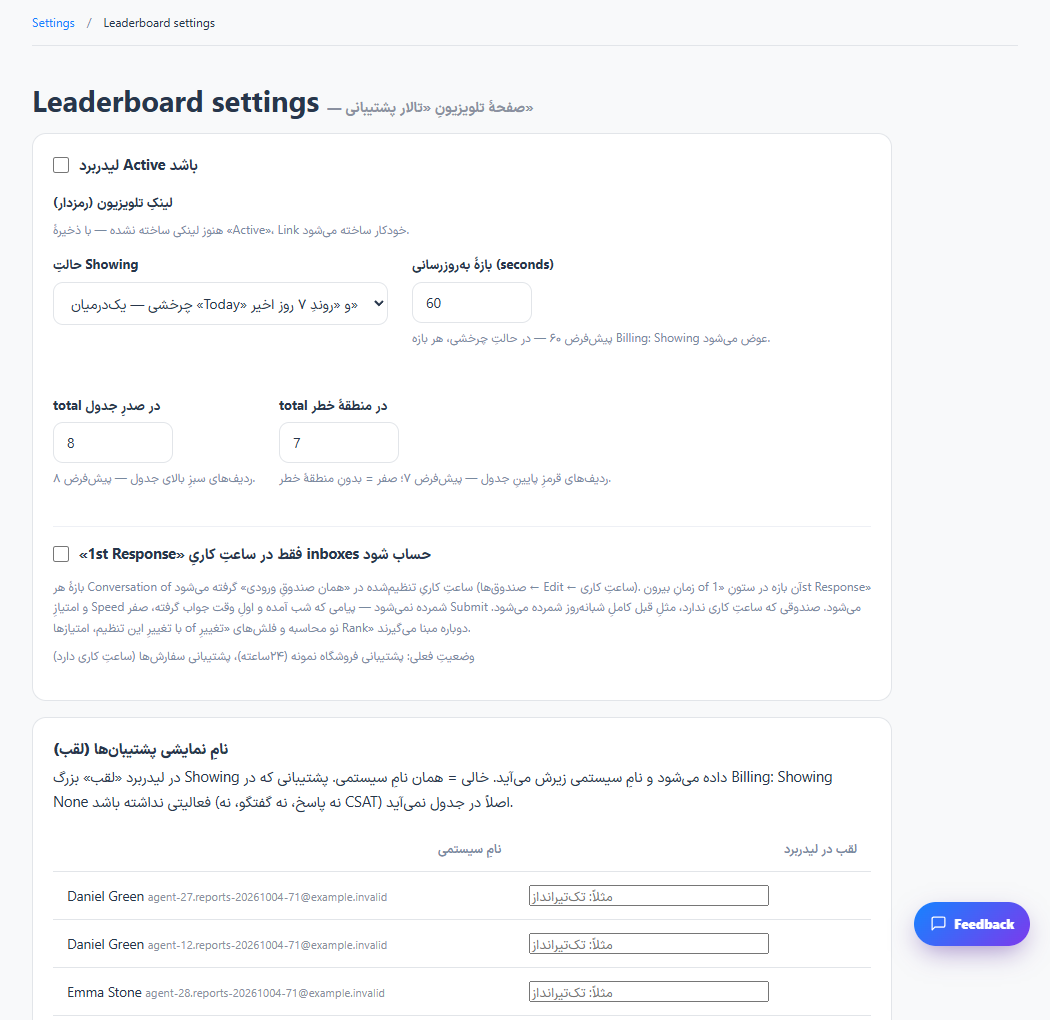
Step 2
Save the configuration and open the display link provided by the page.
Step 3
Check readability on the intended screen and keep any private display link within your team.
Check the result
The shared screen presents the supported team performance information.
If something does not work
Check the selected workspace and inbox, your access role and the save confirmation. Reload the page to confirm the saved state. If the issue continues, contact support with the page name and error text.
Contact support