
Where to start
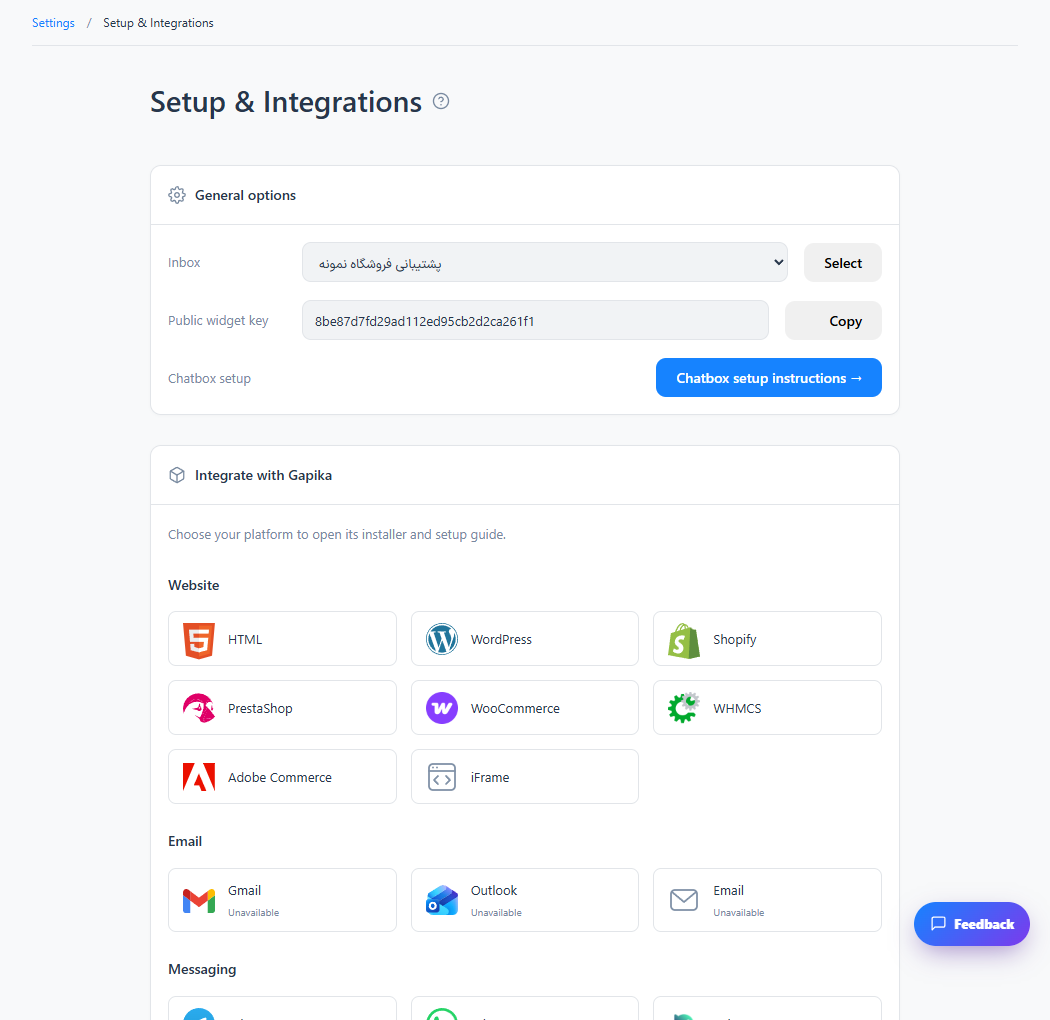
Settings → Workspace → Setup & Integrations → HTML
For panel settings, sign in to the intended workspace with a role that has access to that section. Available tools depend on your plan and configured services.
Step 1
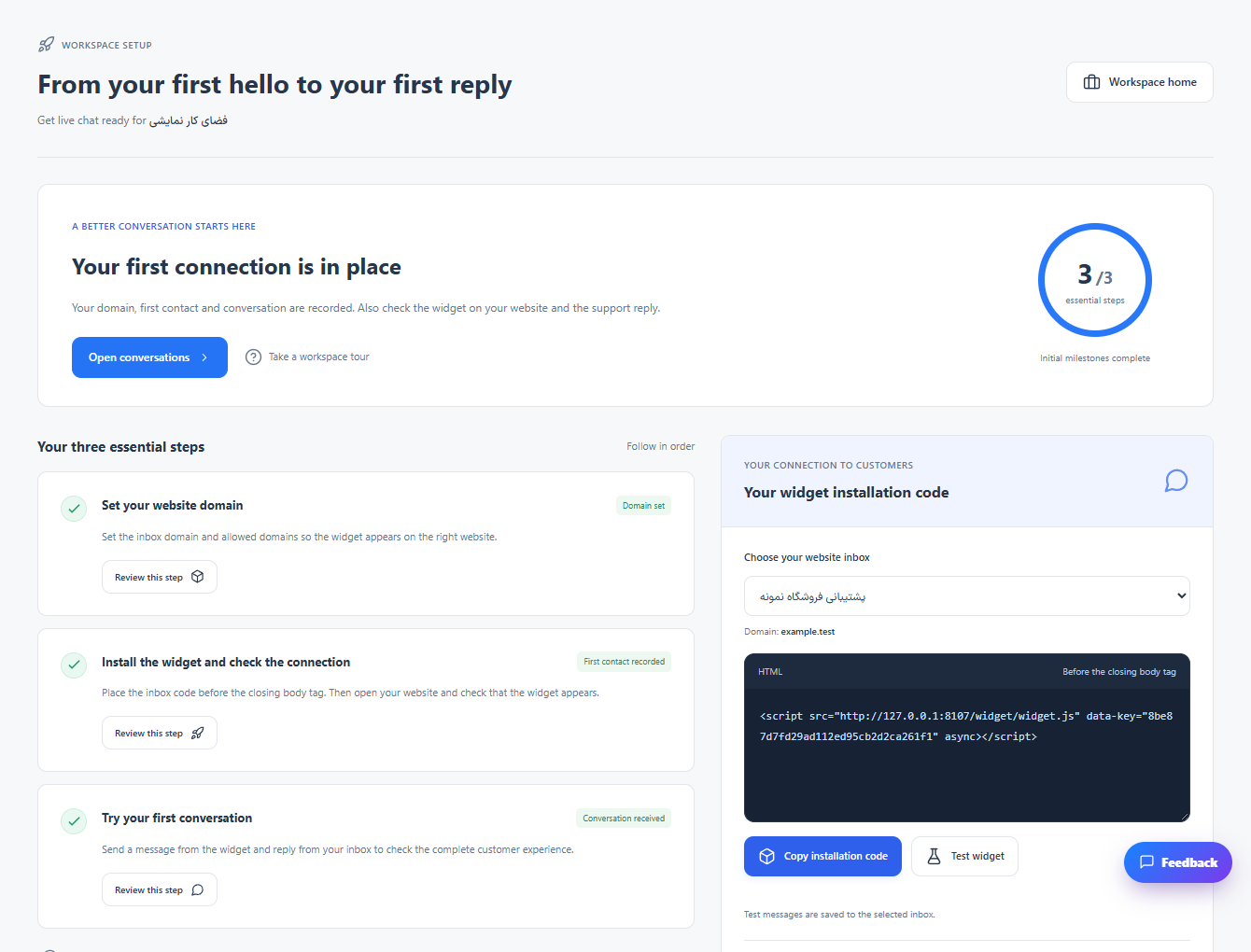
Choose the correct inbox and copy the installation snippet shown for it.
Step 2
Add the snippet before the closing body tag in the shared website layout, then publish the change.
Step 3
Open a public page, send a test message and confirm that it arrives in the selected inbox.
Check the result
The chat launcher appears on pages using that layout.
If something does not work
Check allowed domains, caching and content security rules if the widget does not load. Do not install the same widget twice.
Contact support