
Where to start
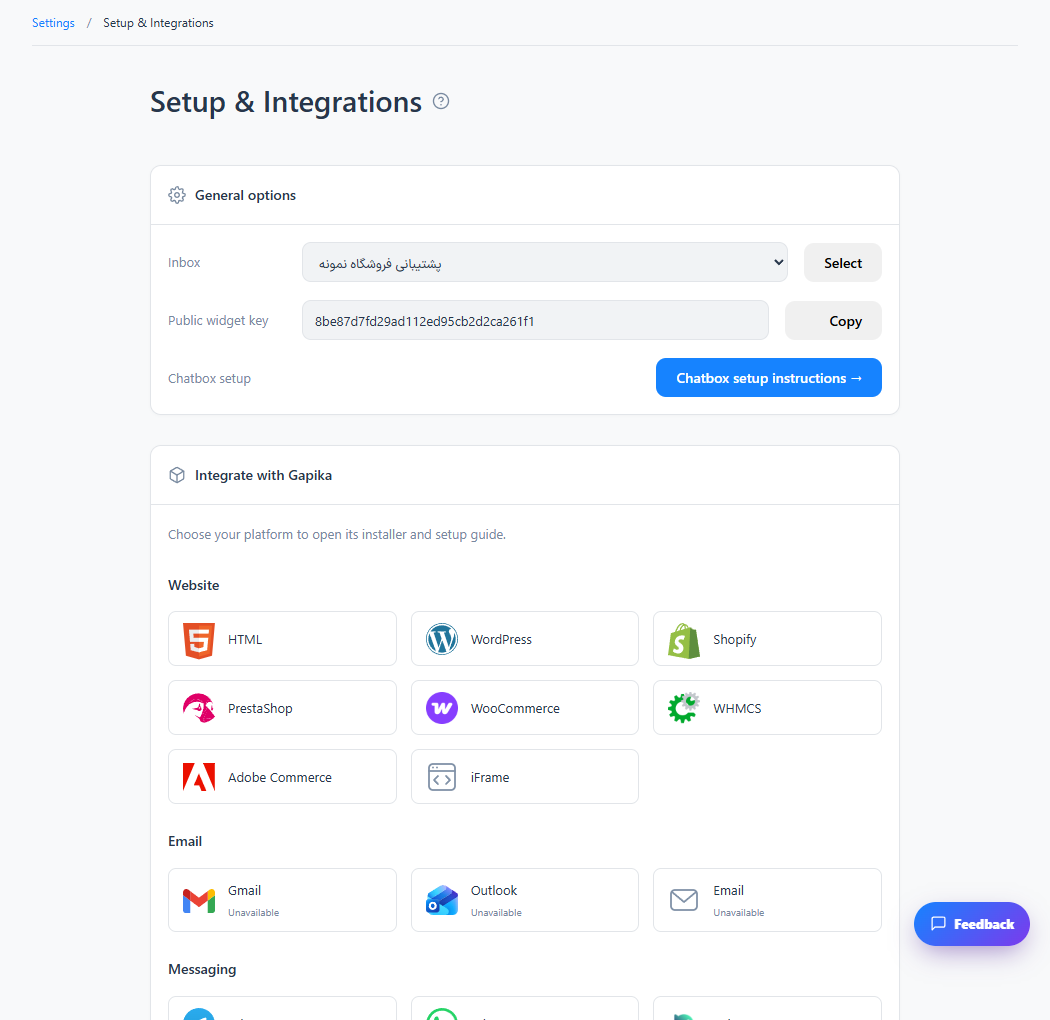
Setup & Integrations → WHMCS
For panel settings, sign in to the intended workspace with a role that has access to that section. Available tools depend on your plan and configured services.
Step 1
Download the WHMCS package from the installation dialog and extract it.
Step 2
Upload the module to the directory specified in the package guide and activate it in WHMCS Addon Modules.
Step 3
Configure the Gapika server and inbox key, then test the client area with a visitor account.
Check the result
The chat widget loads in the supported WHMCS client pages.
If something does not work
Check the selected workspace and inbox, your access role and the save confirmation. Reload the page to confirm the saved state. If the issue continues, contact support with the page name and error text.
Contact support