
Where to start
Conversations → Customer sidebar
For panel settings, sign in to the intended workspace with a role that has access to that section. Available tools depend on your plan and configured services.
Step 1
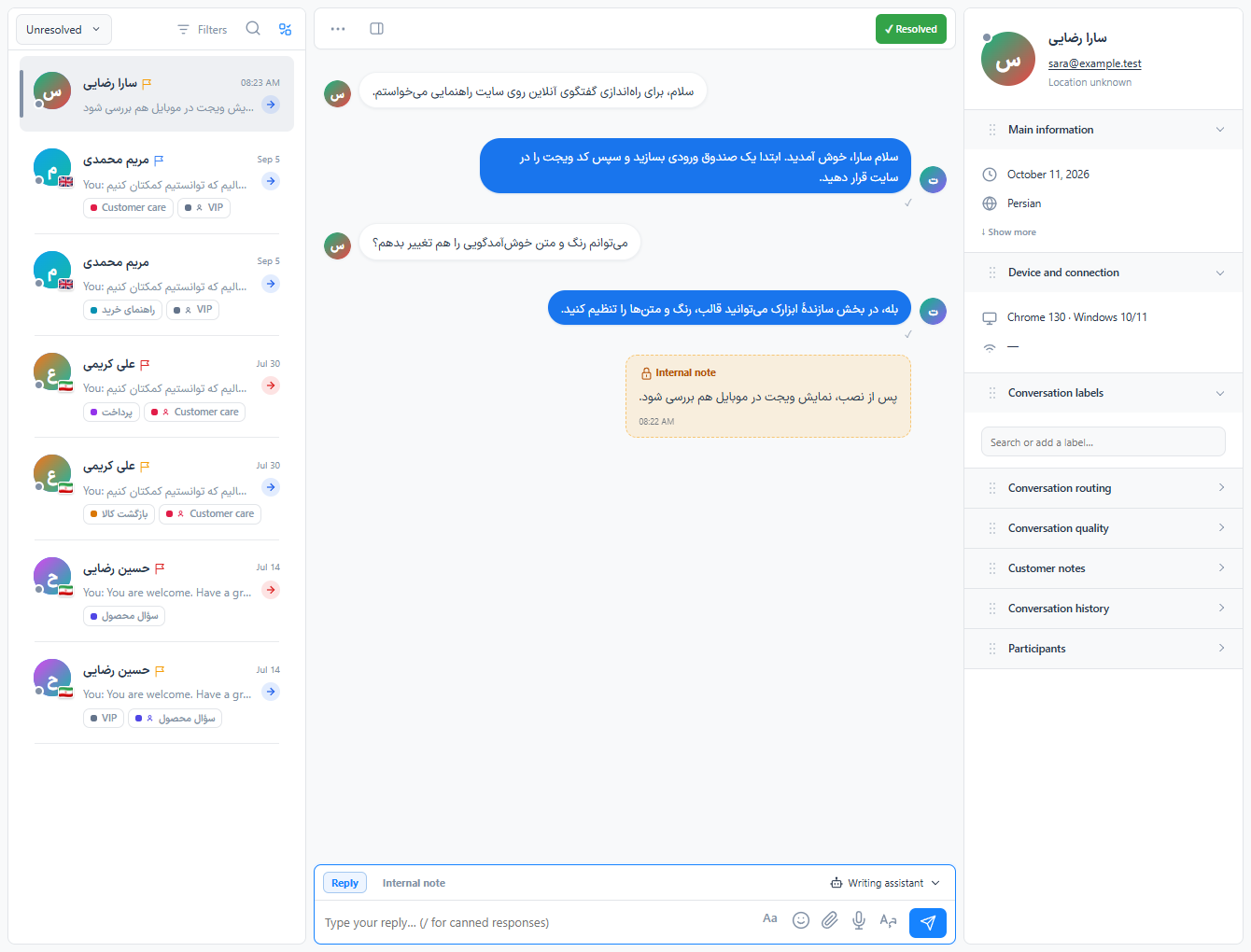
Open the customer sidebar and expand the information sections you use most.
Step 2
Drag a section by its handle to a new position, then release it.
Step 3
Reload the conversation to confirm your arrangement was saved for your operator account.
Check the result
Your preferred section order stays associated with your account.
If something does not work
Check the selected workspace and inbox, your access role and the save confirmation. Reload the page to confirm the saved state. If the issue continues, contact support with the page name and error text.
Contact support