
Where to start
Conversations → Message composer
For panel settings, sign in to the intended workspace with a role that has access to that section. Available tools depend on your plan and configured services.
Step 1
Open a conversation and use the attachment button to select a supported file or image.
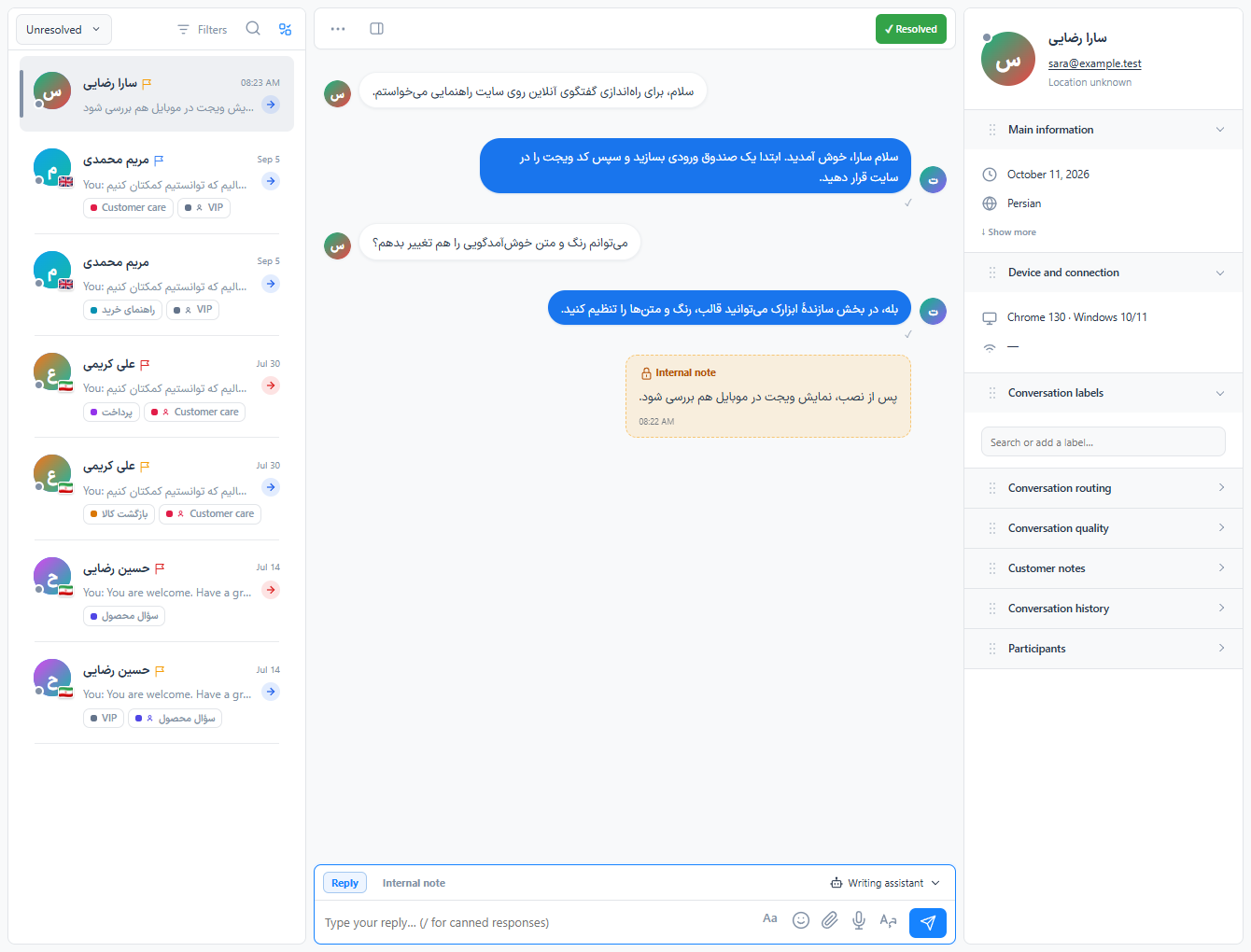
Step 2
Review the attachment before sending. For a voice message, allow microphone access and record your message.
Step 3
Send the message and check its delivery state. Test playback or download from a visitor session.
Check the result
The attachment is included in the conversation history.
If something does not work
File limits and channel capabilities apply. Microphone recording requires browser permission and a secure connection.
Contact support