
Where to start
Settings → Workspace → Operators
For panel settings, sign in to the intended workspace with a role that has access to that section. Available tools depend on your plan and configured services.
Step 1
Choose Add operator, enter the colleague’s details and assign the appropriate role.
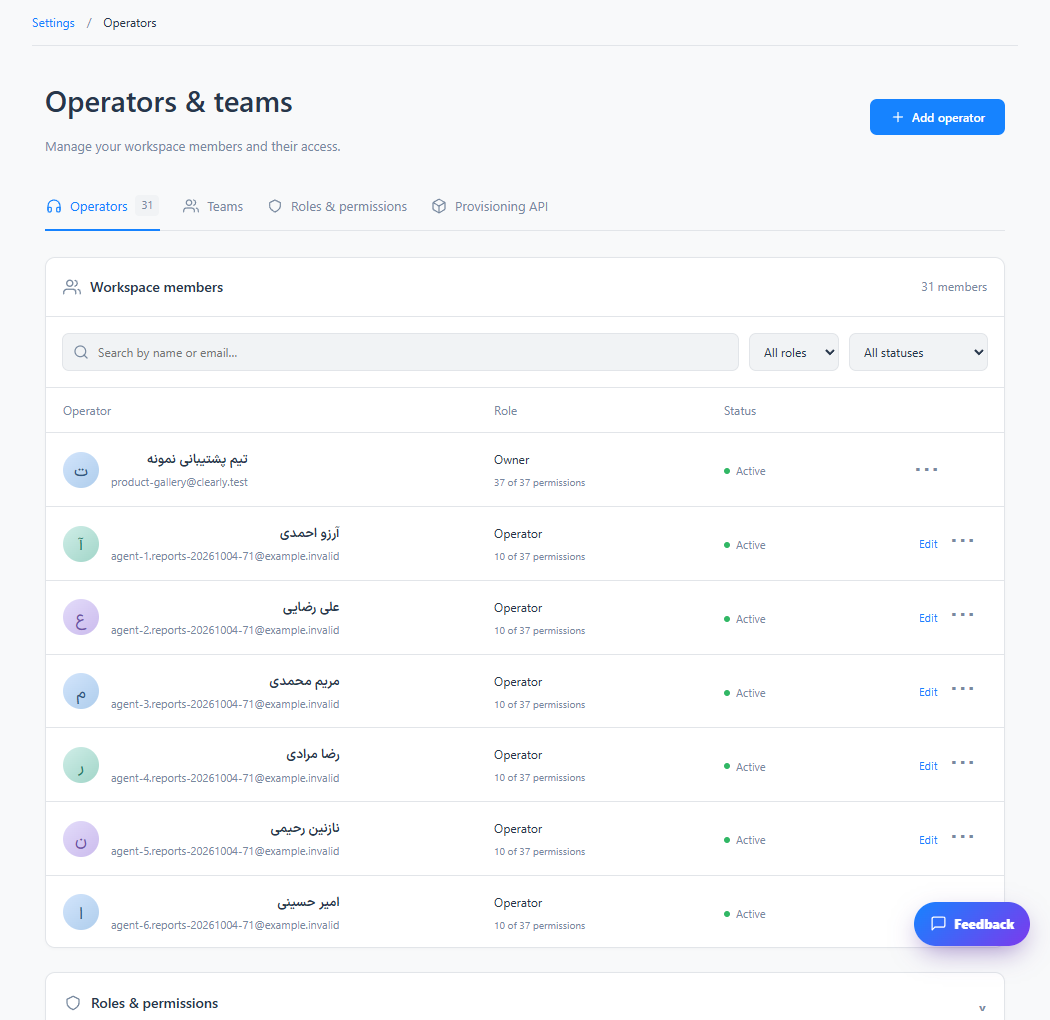
Step 2
Share the generated invitation through your approved team process. The colleague must accept it to use the workspace.
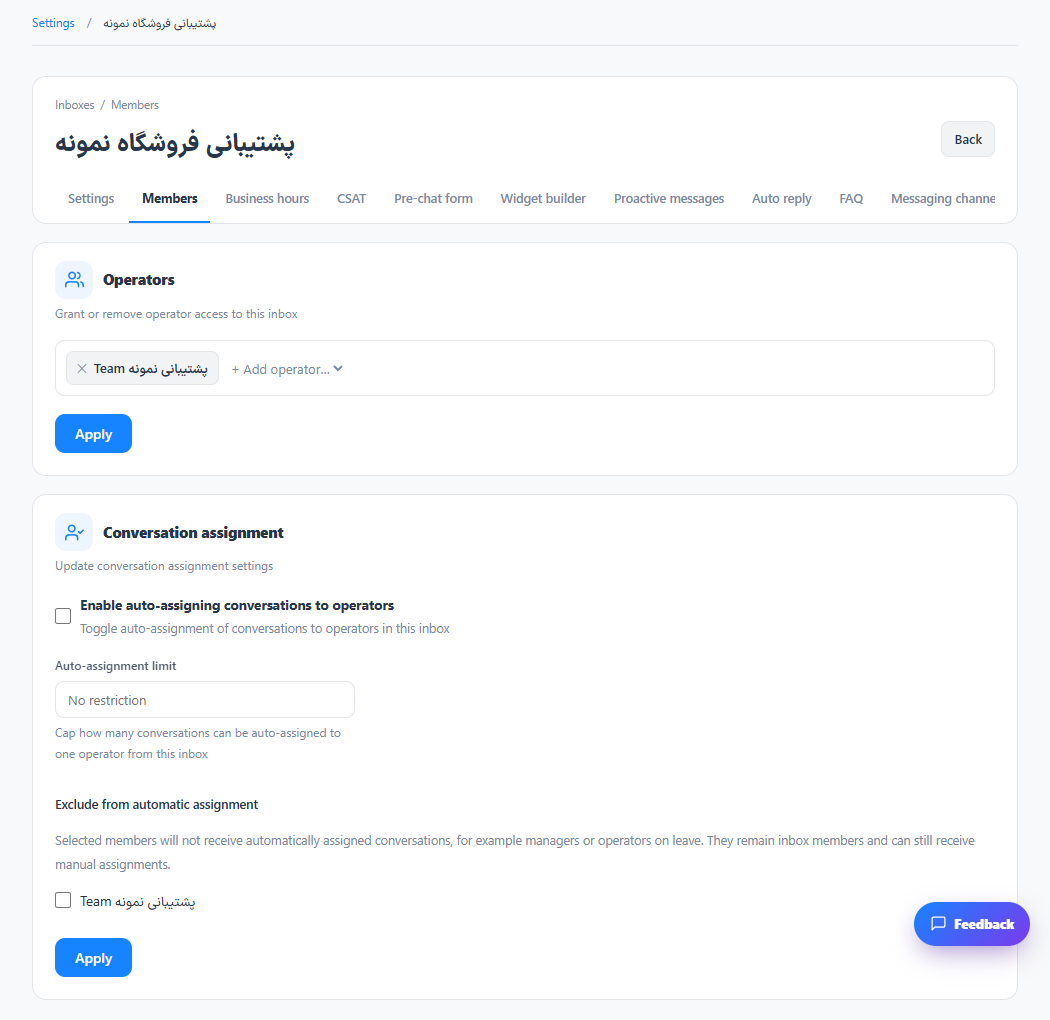
Step 3
Use the row action menu to edit details, change the role or adjust permissions. Check inbox membership separately.
Check the result
The colleague has access to the permitted parts of your workspace.
If something does not work
Owner privileges and administrative actions are restricted. Grant only the access each colleague needs.
Contact support