
Where to start
Setup & Integrations → Bale
For panel settings, sign in to the intended workspace with a role that has access to that section. Available tools depend on your plan and configured services.
Step 1
Select the inbox in the popup to open its messaging connections.
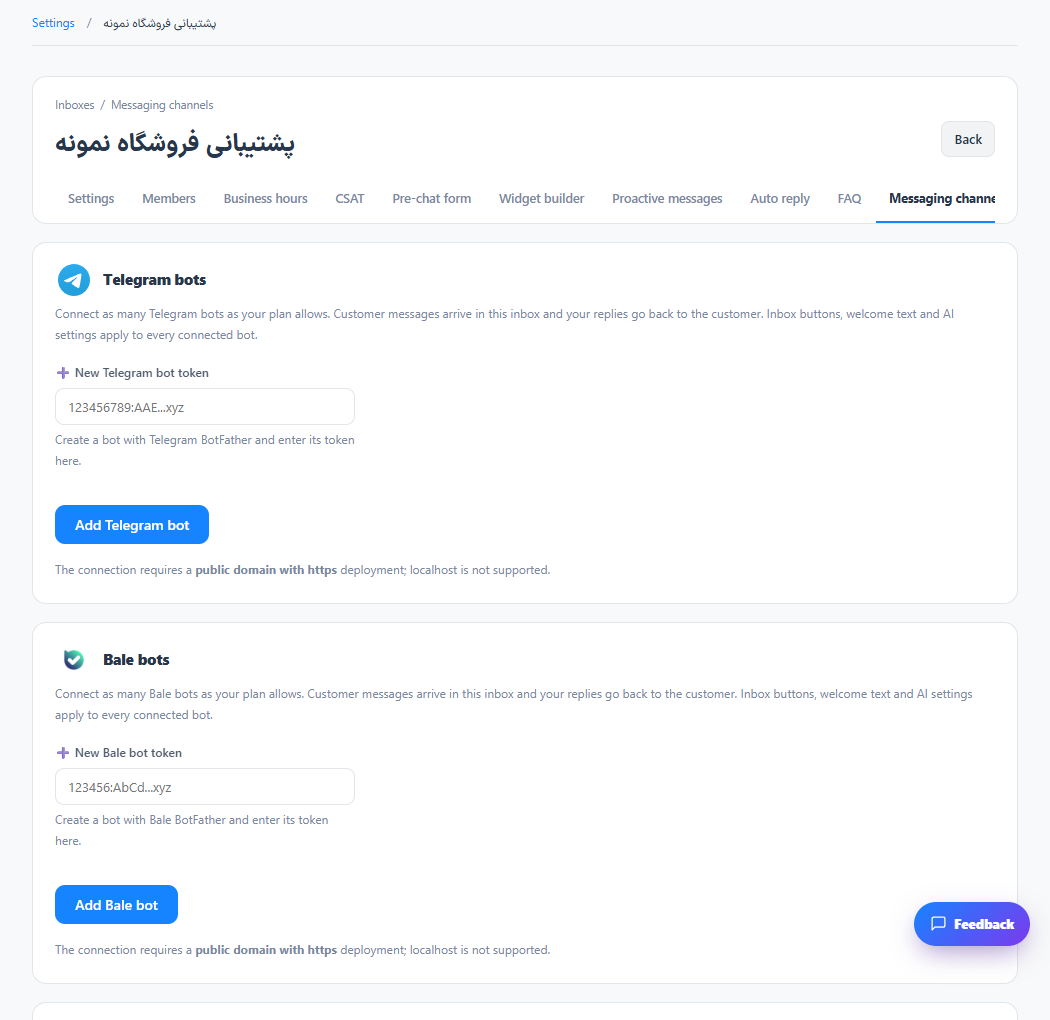
Step 2
Create a bot using Bale’s bot management service and enter its token in the matching section.
Step 3
Add the bot and check its connection state. Send it a test message from the messaging app and reply from the panel.
Check the result
Messages from the connected bot appear in that inbox.
If something does not work
A public HTTPS address and working provider access are required. Keep bot tokens private; rotate a token if it is exposed.
Contact support