
Where to start
Inboxes → Manage → AI voice call
For panel settings, sign in to the intended workspace with a role that has access to that section. Available tools depend on your plan and configured services.
Step 1
Check that the voice and AI services are configured, then choose the voice and reply language.
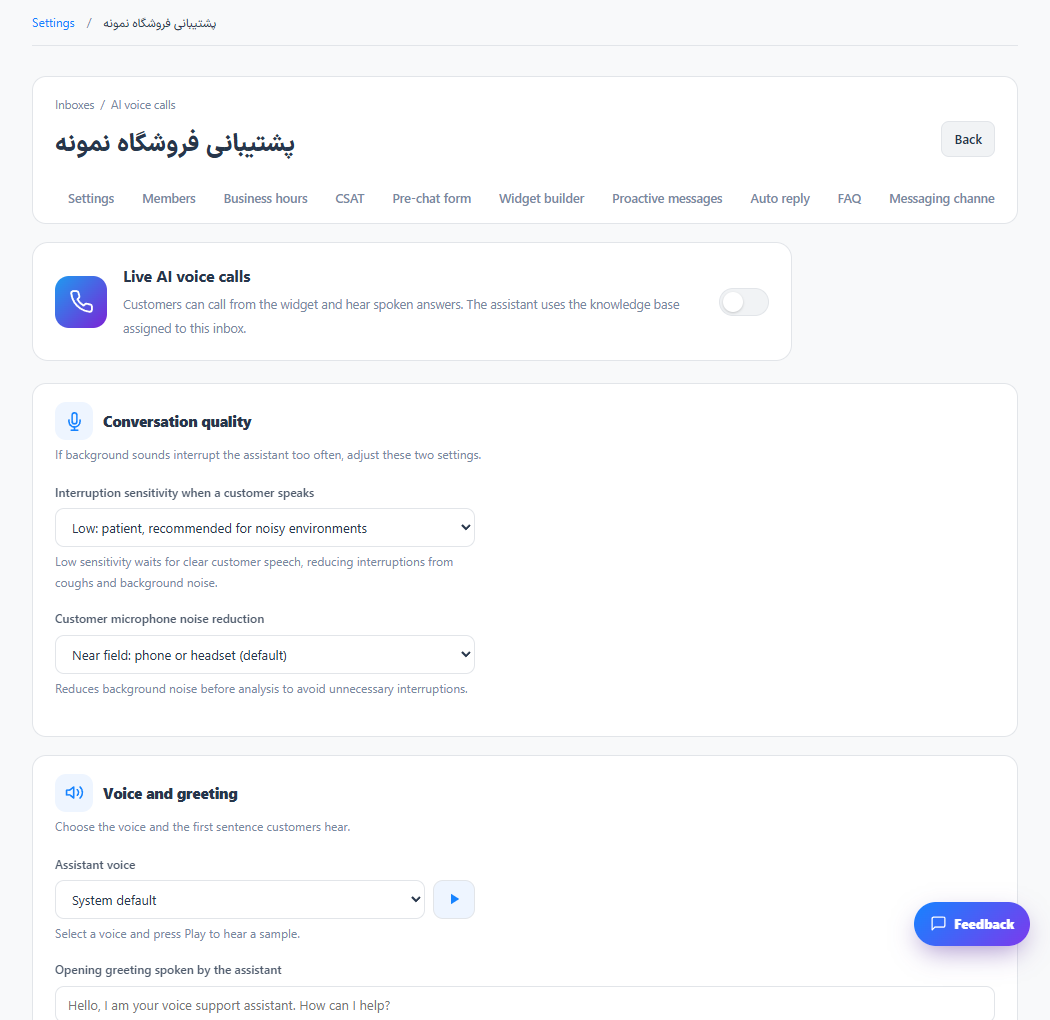
Step 2
Set the welcome message, maximum call duration and any business-hours restriction. Review the notice shown before a call.
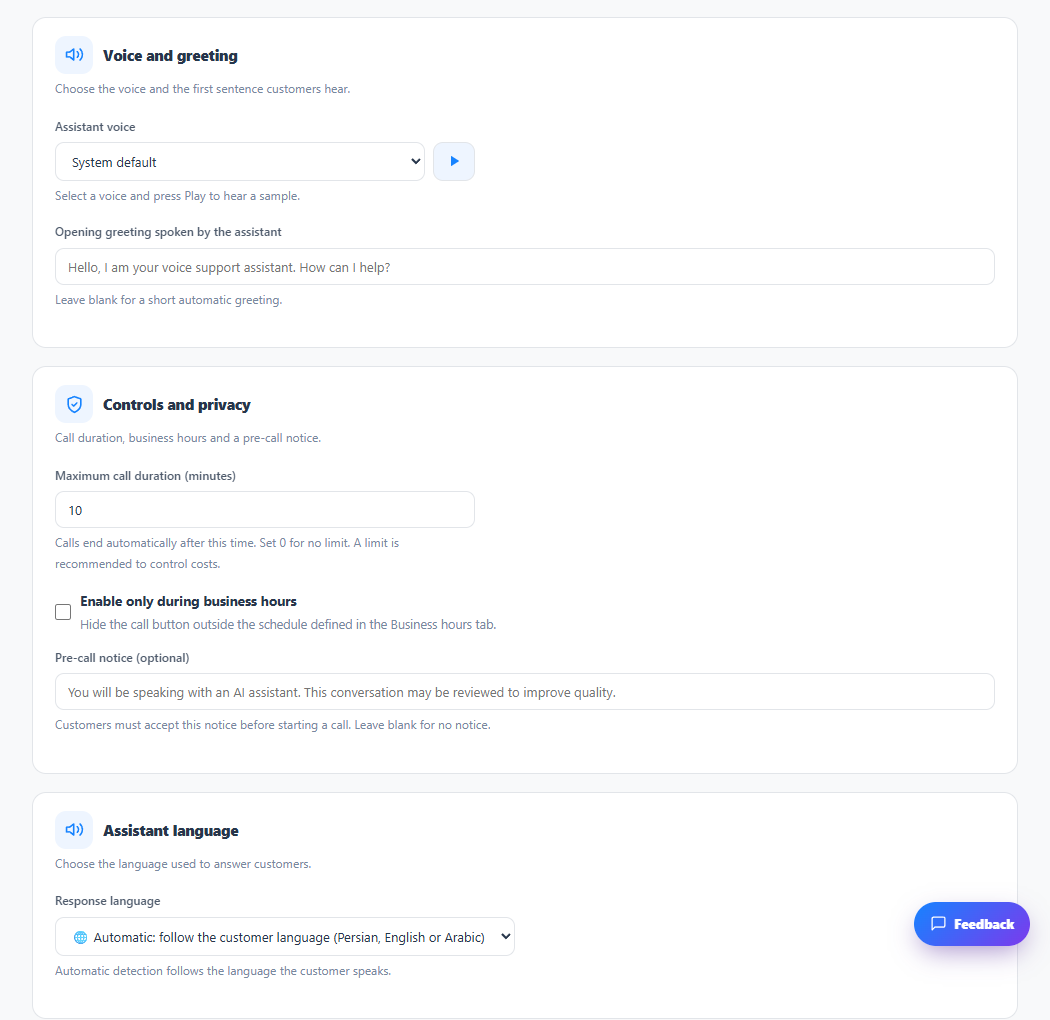
Step 3
Save and run a short test with microphone permission. Check the transcript and cost before enabling it broadly.
Check the result
Eligible visitors can use the configured voice experience.
If something does not work
Voice service availability, browser permission, credit and plan limits apply.
Contact support