
Where to start
Settings → Knowledge and automation → Knowledge
For panel settings, sign in to the intended workspace with a role that has access to that section. Available tools depend on your plan and configured services.
Step 1
Choose a supported source: text, URL or a supported text file. Add a title and select the relevant inboxes.
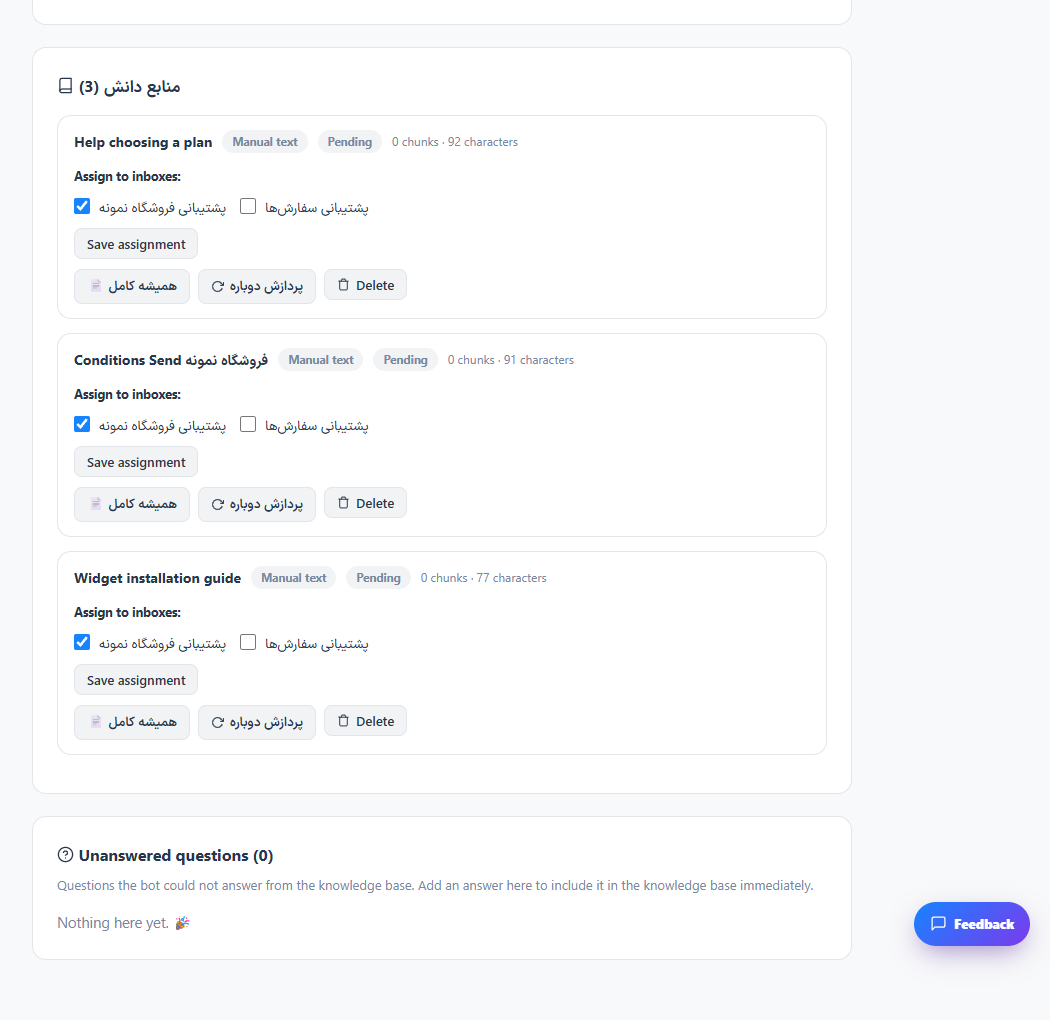
Step 2
Add and process the source. Check its status and correct errors before using it for customer answers.
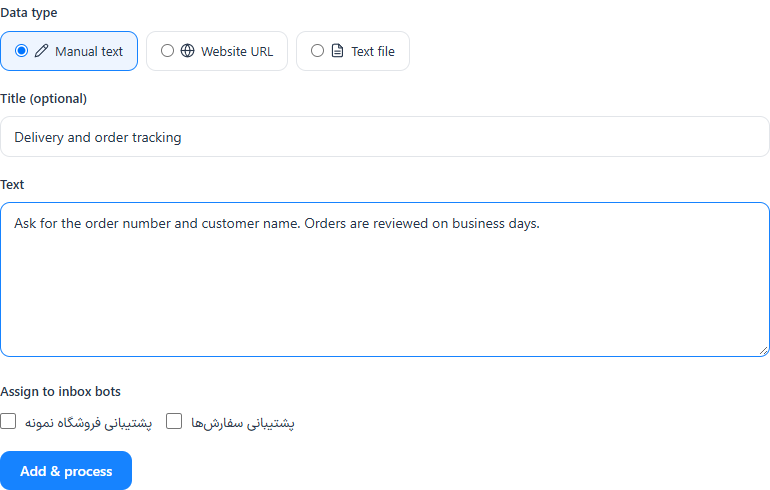
Step 3
Use the search or knowledge test tools with representative questions. Update outdated sources when your information changes.
Check the result
Processed sources are available to the configured assistant for the selected inboxes.
If something does not work
Processing and AI answers need a configured provider. Do not add passwords, private keys or content you are not entitled to share.
Contact support