
Where to start
Reports → Inboxes / Teams / Labels
For panel settings, sign in to the intended workspace with a role that has access to that section. Available tools depend on your plan and configured services.
Step 1
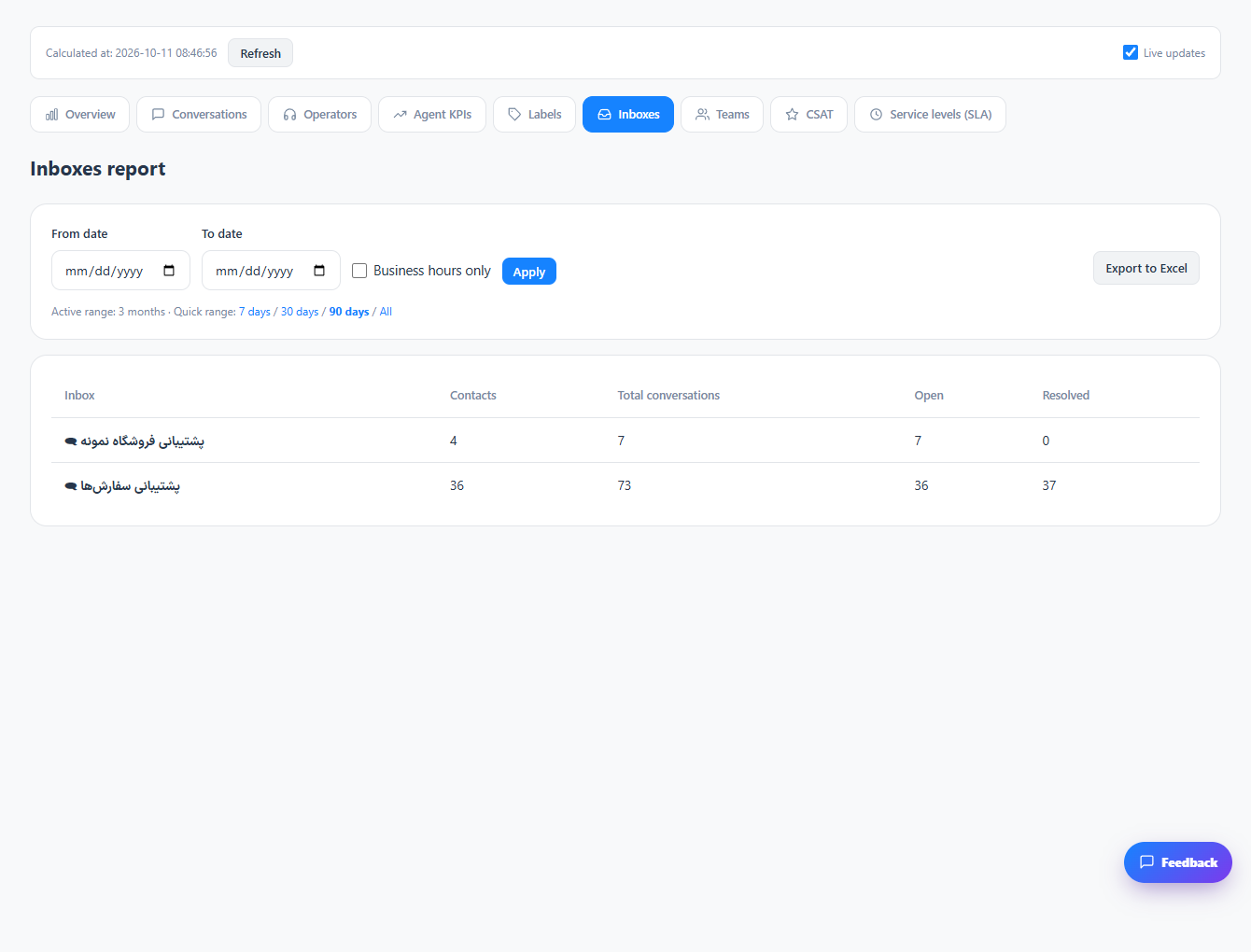
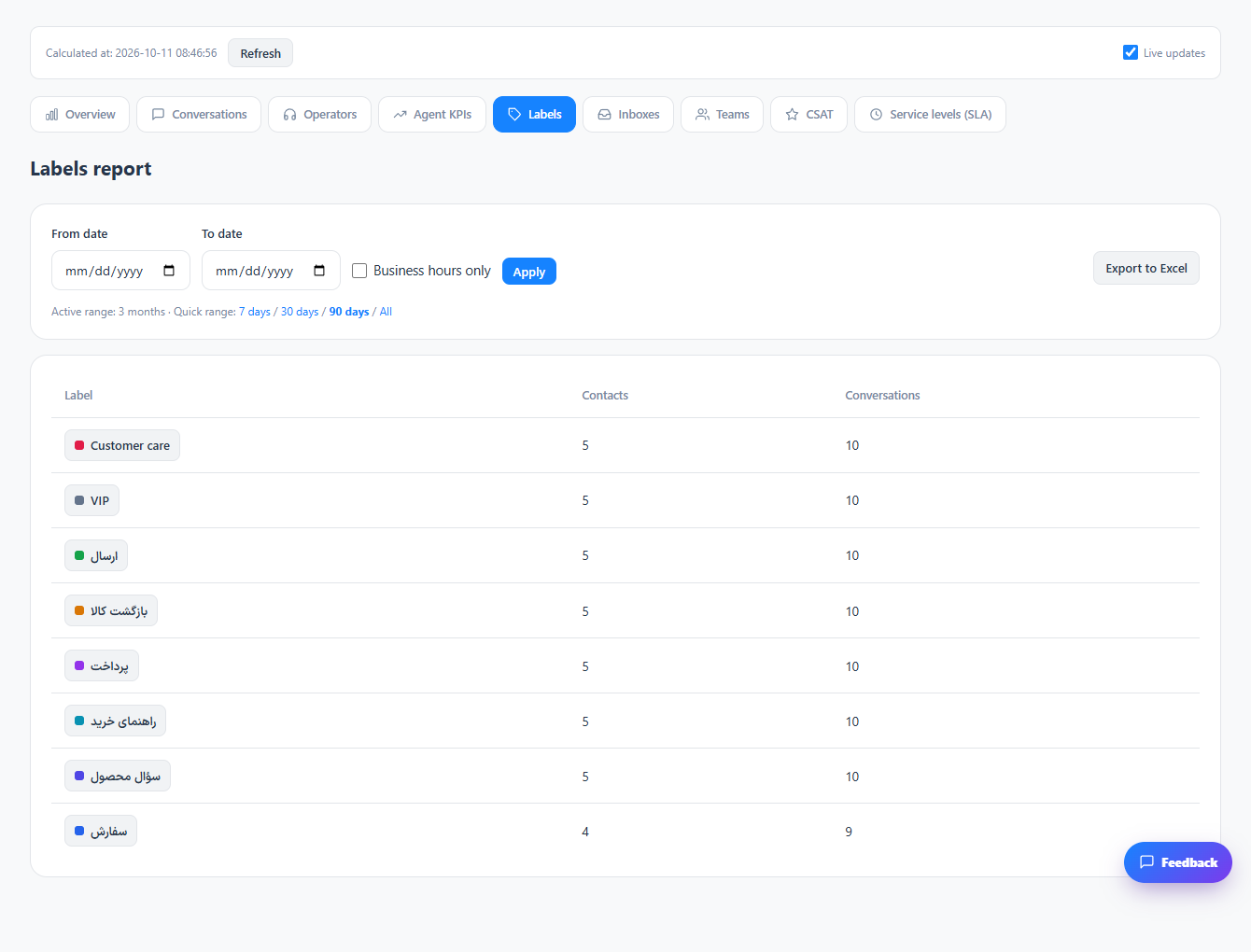
Select the view matching your question: channel workload, team workload or request topic.
Step 2
Apply the date range and inspect the totals and time metrics for each group.
Step 3
Check conversations behind unusual groups before changing routing or staffing.
Check the result
Workload can be examined by the organizational categories you use.
If something does not work
Check the selected workspace and inbox, your access role and the save confirmation. Reload the page to confirm the saved state. If the issue continues, contact support with the page name and error text.
Contact support