
Choose when the assistant replies
Use the inbox response policy to prioritize AI, prioritize people or let the assistant respond when operators are unavailable.
Configure an assistant for each inbox using your business knowledge, preferred tone and handoff rules. Decide where it can respond and when a human should take over.
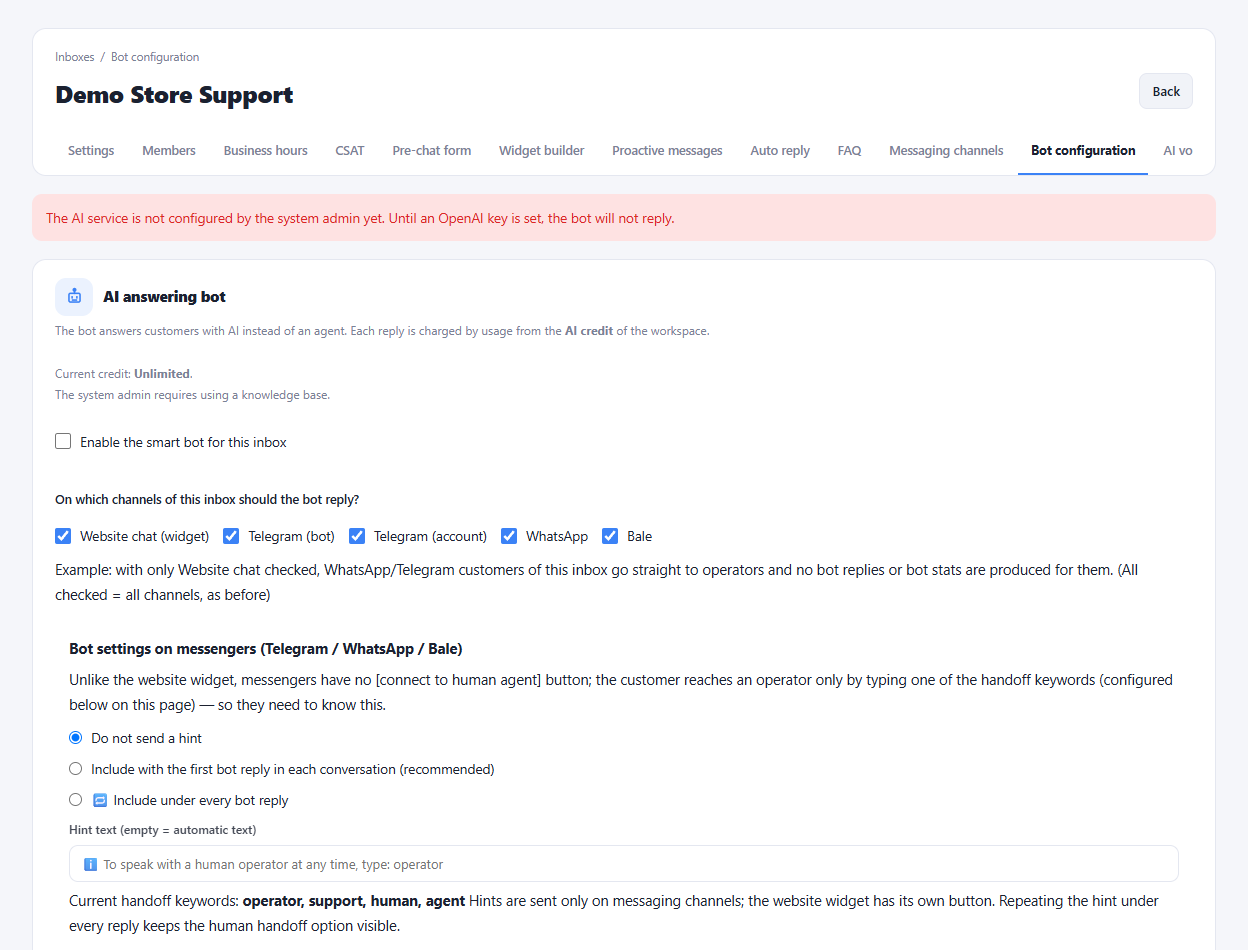
Use the inbox response policy to prioritize AI, prioritize people or let the assistant respond when operators are unavailable.
Choose strict, balanced or open behavior and write the assistant's instructions. Maintain the knowledge sources that inform its answers.
Configure handoff keywords, channel eligibility and response limits. Operators can also control the bot for an individual conversation.
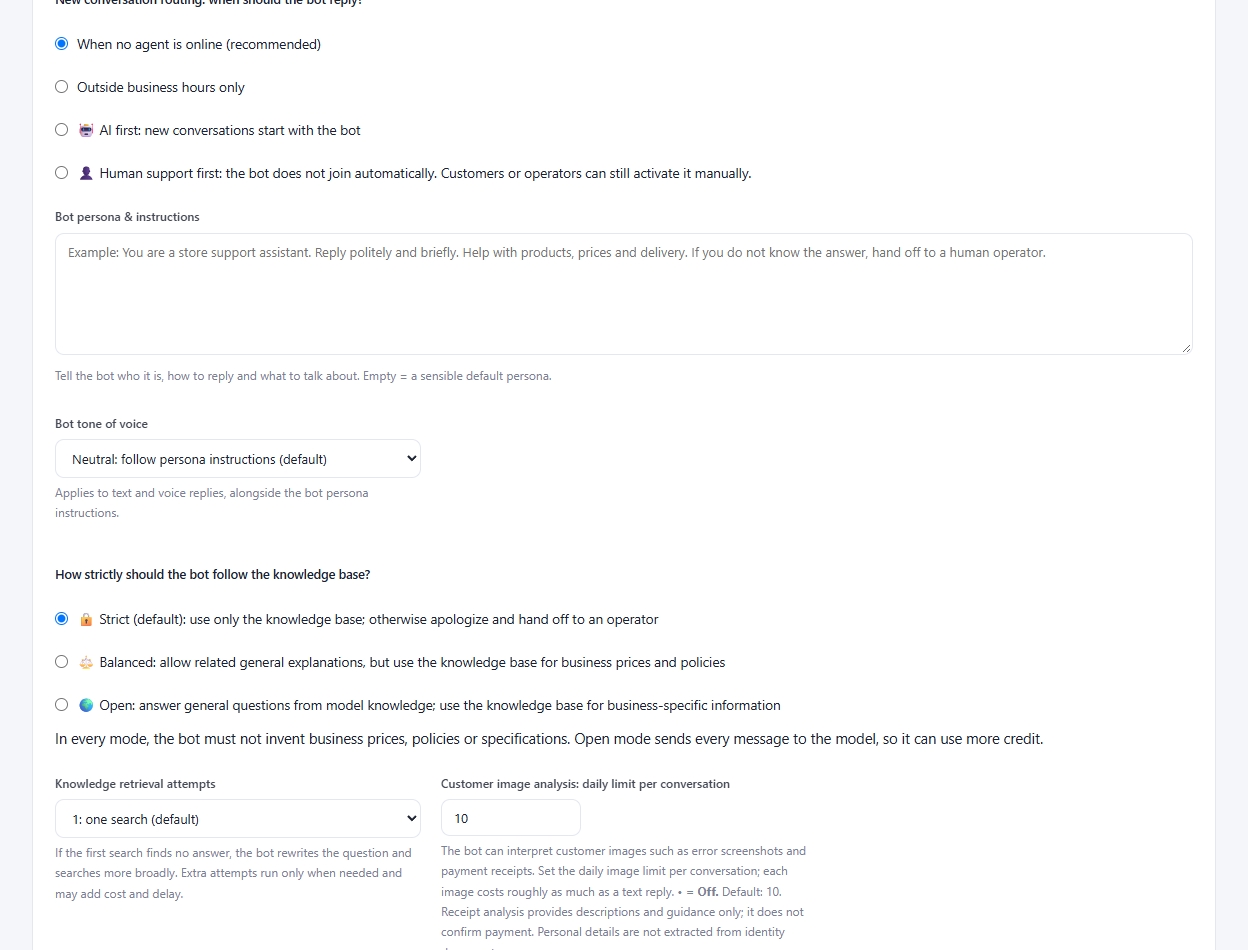
Add and review the knowledge sources for the selected inbox.
Set the assistant's instructions, tone, eligible channels and handoff policy.
Test representative questions before enabling automated responses.
Yes. The inbox lets you select the channels where the bot is allowed to respond and configure the response priority.
Enlarge the product screenshots on this page or explore the interactive workspace demo. The demo uses local sample data; plan availability is listed on the pricing page.
Explore the workspace demoCompare the available plans and decide which capacities your support team needs.