
Where to start
Inboxes → Manage → Widget builder
For panel settings, sign in to the intended workspace with a role that has access to that section. Available tools depend on your plan and configured services.
Step 1
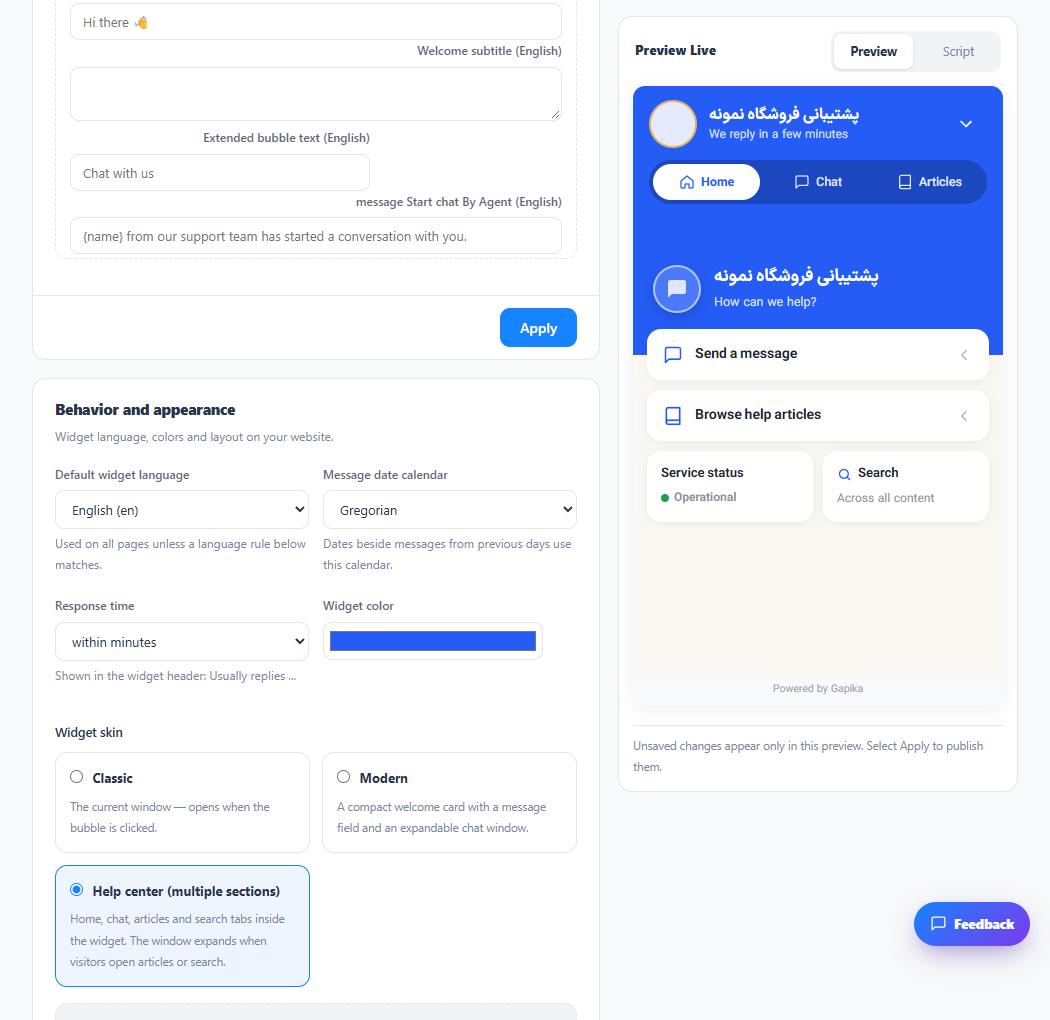
Choose the default widget language and calendar appropriate for your visitors.
Step 2
Open the translated text section and enter welcome text for the languages you use.
Step 3
If you use language rules by page URL, test a page from each language after saving.
Check the result
The widget uses the selected language; the operator panel language can be changed independently.
If something does not work
Check the selected workspace and inbox, your access role and the save confirmation. Reload the page to confirm the saved state. If the issue continues, contact support with the page name and error text.
Contact support